
Sep 24, 2026
BlogReal or Fake? Google Account Security Alert
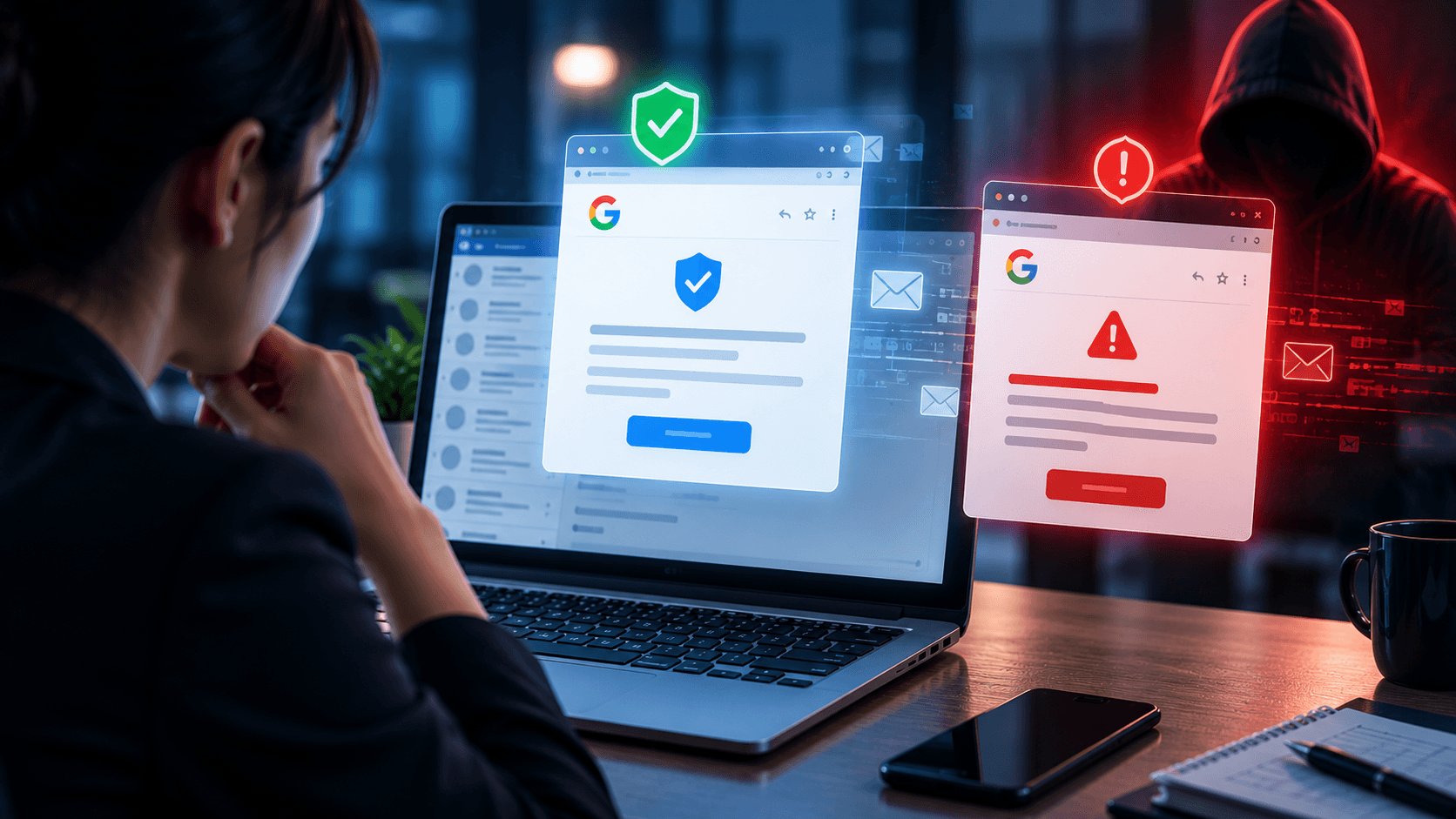
You receive an email:
“Security Alert: Someone just signed in to your Google Account from a new device.”
There is a large button asking you to review the activity immediately.
It looks like Google. The logo is correct. The message sounds serious.
But should you click it?
Not yet.
Google does send legitimate security alerts when it detects important activity related to your account. But attackers also create fake Google security alerts to steal passwords and take over accounts.
The safest approach is simple:
Don't trust the email first. Verify the alert directly through your Google Account.
Quick Answer: How Can You Tell If a Google Security Alert Is Real?
If you receive an unexpected Google Account security alert:
Do not click links in the email.
Check the sender carefully, but do not rely on the sender alone.
Open Google directly using your normal browser or app.
Go to your Google Account's security section.
Review recent security activity and devices.
If the activity appears there and matches the alert, investigate it through your Google Account.
If you do not recognize the activity, secure your account immediately.
The key principle is:
Verify the alert through Google, not through the alert itself.
What Is a Google Account Security Alert?
A Google Account security alert is a notification about security-related activity involving your account.
For example, Google may notify you about:
A new sign-in
A sign-in from a new device
Suspicious account activity
A password or security change
A new recovery option
Changes to important account settings
These alerts are designed to help you notice activity that may not have been performed by you.
The problem is that criminals know people take security warnings seriously.
So they imitate them.
What Does a Fake Google Security Alert Look Like?
A fake alert may say:
“Someone has your password.”
“Suspicious login detected.”
“Your Google Account will be suspended.”
“Confirm your identity immediately.”
“Unusual activity detected. Secure your account now.”
The message usually tries to make you worried enough to click quickly.
After clicking, you may be taken to a website that looks very similar to Google's login page.
You enter your email and password.
But instead of signing in to Google, you have just given your credentials to the attacker.
Why Are Fake Google Alerts Convincing?
Google is familiar to almost everyone.
Employees use Google accounts for email, documents, cloud storage, calendars, and many other services.
Attackers can easily copy visual elements such as:
Google logos
Colors
Buttons
Email layouts
Security icons
Modern phishing emails can also contain professional writing with no obvious spelling mistakes.
This means:
“It looks like Google” is not enough to prove that it came from Google.
7 Signs a Google Security Alert May Be Fake
1. It Creates Extreme Urgency
Be careful with messages such as:
“Your account will be deleted within 24 hours.”
“Verify immediately or lose access.”
Security alerts can be urgent, but attackers often use exaggerated deadlines to stop you from thinking.
2. It Asks You to Enter Your Password Through an Email Link
The message directs you to a login page and asks for your credentials.
Instead of using the link, open Google directly and check your account.
3. The Website Is Not Really Google
A phishing website may look almost identical to Google.
But the web address could be something completely different.
Do not judge a website only by its appearance.
4. The Sender Looks Slightly Wrong
The sender name may say:
Google Security
but the actual address may come from an unrelated domain.
Always check the complete sender address.
However, remember that the sender alone should not be your only verification method.
5. It Requests Sensitive Information
Be suspicious if the email unexpectedly asks for:
Your password
Verification codes
Recovery information
Payment details
Personal information
6. It Includes an Unexpected Attachment
A normal account security notification should not require you to download a strange document, ZIP file, application, or other unexpected attachment to secure your account.
7. The Alert Does Not Match Your Google Account
The strongest check is often outside the email.
If the message claims there was suspicious account activity, open your Google Account directly and review your security information.
If you cannot find anything matching the message, treat the email with caution.
How to Verify a Google Security Alert Without Clicking the Email
You do not need to use the email link to investigate an alert.
Step 1: Leave the Email Alone
Do not click its links, download files, or reply.
Step 2: Open Google Yourself
Open your normal browser or Google application.
Access your Google Account the same way you normally would.
Do not copy the suspicious link into your browser.
Step 3: Check Your Security Information
Review your account's security area for recent security activity, sign-ins, and devices.
Ask:
Do I recognize these devices?
Do I recognize these locations?
Did I make these changes?
Step 4: Investigate From Inside Your Account
If Google shows a security issue, follow the actions provided inside your Google Account rather than returning to the email.
This removes one of the attacker's biggest advantages: the phishing link.
Real Alert vs. Fake Alert: What Should You Check?
Check | Safer approach |
Sender | Check the full address, but don't rely on it alone |
Link | Don't use an unexpected email link to sign in |
Security activity | Check directly inside your Google Account |
Password request | Never send your password by email |
Verification code | Don't share unexpected verification codes |
Urgency | Don't let a deadline stop you from verifying |
Website | Access Google directly instead of following the message |
The important distinction is not whether the email looks real.
It is whether you can independently confirm the security event.
What If the Google Security Alert Is Real?
Suppose you check your Google Account and find a login you do not recognize.
Take it seriously.
Use the security options available in your Google Account to review and secure the account.
Depending on what happened, you may need to:
Review unfamiliar devices
Change your password
Review recovery information
Check security settings
Review connected applications
Enable or review multi-factor authentication
If this is a business account, inform your IT or security contact as well.
An unauthorized Google account login may expose more than email. Depending on the account, the attacker may potentially gain access to business files, contacts, conversations, and connected services.
What If You Already Clicked the Fake Alert?
Clicking alone and entering information are different situations.
Tell your IT or security team exactly what happened.
For example:
“I clicked the link but entered nothing.”
“I entered my email and password.”
“I entered a verification code.”
“I downloaded a file.”
“I approved a login request.”
This information helps determine the appropriate response.
If you entered your Google password into a suspicious website, secure your account immediately through Google's legitimate account settings.
Can a Fake Google Email Come From a Convincing Address?
Yes, attackers may use lookalike addresses or other techniques to make an email appear trustworthy.
And there is another possibility: a legitimate account involved in an email conversation may itself have been compromised.
This is why checking the sender is useful, but it should not be the final decision.
For a security alert, the better question is:
“Can I confirm this activity directly in my Google Account?”
Why Businesses Should Teach Employees This Simple Rule
Employees receive many security notifications.
Microsoft. Google. Banks. Cloud services. Business applications.
It is unrealistic to expect every employee to perfectly recognize every phishing email by appearance.
A much simpler habit is:
Don't use an unexpected security email to access your account.
Instead:
Open the official service yourself → Check the account → Take action there.
This approach works even when a phishing email looks extremely convincing.
A 30-Second Google Security Alert Checklist
When you receive a Google security alert, ask:
Expected? Was I just signing in or changing something?
Sender? Does anything about the email look unusual?
Request? Is it asking for my password or verification code?
Urgency? Is it pressuring me to act immediately?
Link? Is it asking me to sign in through the email?
Account? Can I confirm the activity directly in my Google Account?
When in doubt:
Don't click → Open Google yourself → Verify the activity.
Key Takeaways
A Google Account security alert can be real.
It can also be a phishing email designed to look almost identical to the real thing.
Logos, professional design, correct grammar, and urgent security language are not enough to prove authenticity.
The safest habit is straightforward:
Do not verify Google through the email. Verify the email through Google.
Open your Google Account independently, review your security activity, and take action from there.
Frequently Asked Questions
Are Google Account security alerts real?
Google does send security notifications about important account activity. However, attackers also imitate these alerts, so unexpected messages should be independently verified.
How can I check whether a Google security email is real?
Instead of clicking the email, open your Google Account directly and review recent security activity and devices.
Does Google ask for my password in a security email?
You should never send your password by email. If an unexpected message asks you to enter credentials through a link, access your Google Account independently instead.
What should I do if I receive a suspicious Google alert?
Do not click the links or open unexpected attachments. Open your Google Account directly, review security activity, and report the message to your IT/security team if it is a business account.
What if I don't recognize a Google login?
Review the activity directly through your Google Account and use Google's account security options to secure the account. For a business account, notify IT or security promptly.
Can a fake Google alert look exactly like a real one?
It can look extremely convincing. Attackers can copy branding, layouts, and wording, which is why appearance alone should not be used to verify an alert.
Related Articles
Sep 18, 2026
What is Invoice Fraud and How can employees spot it?
Learn how invoice fraud works, how attackers fake supplier payment requests, the warning signs employees should check, and how to verify invoices safely.

Sep 17, 2026
What Is DLP for AI and Why do Businesses need t?
Learn what DLP for AI is, how it prevents employees from sharing sensitive business data with AI tools, and why businesses need AI data protection.

Sep 16, 2026
What is Payroll Phishing and How does it target HR?
Learn how payroll phishing targets HR teams, how fake salary and bank account requests work, the warning signs, and how employees can verify requests safely.

Protect your business with ShieldNet 360
Get started and learn how ShieldNet 360 can support your business.