
Sep 25, 2026
BlogI clicked a phishing link. What should I do now?
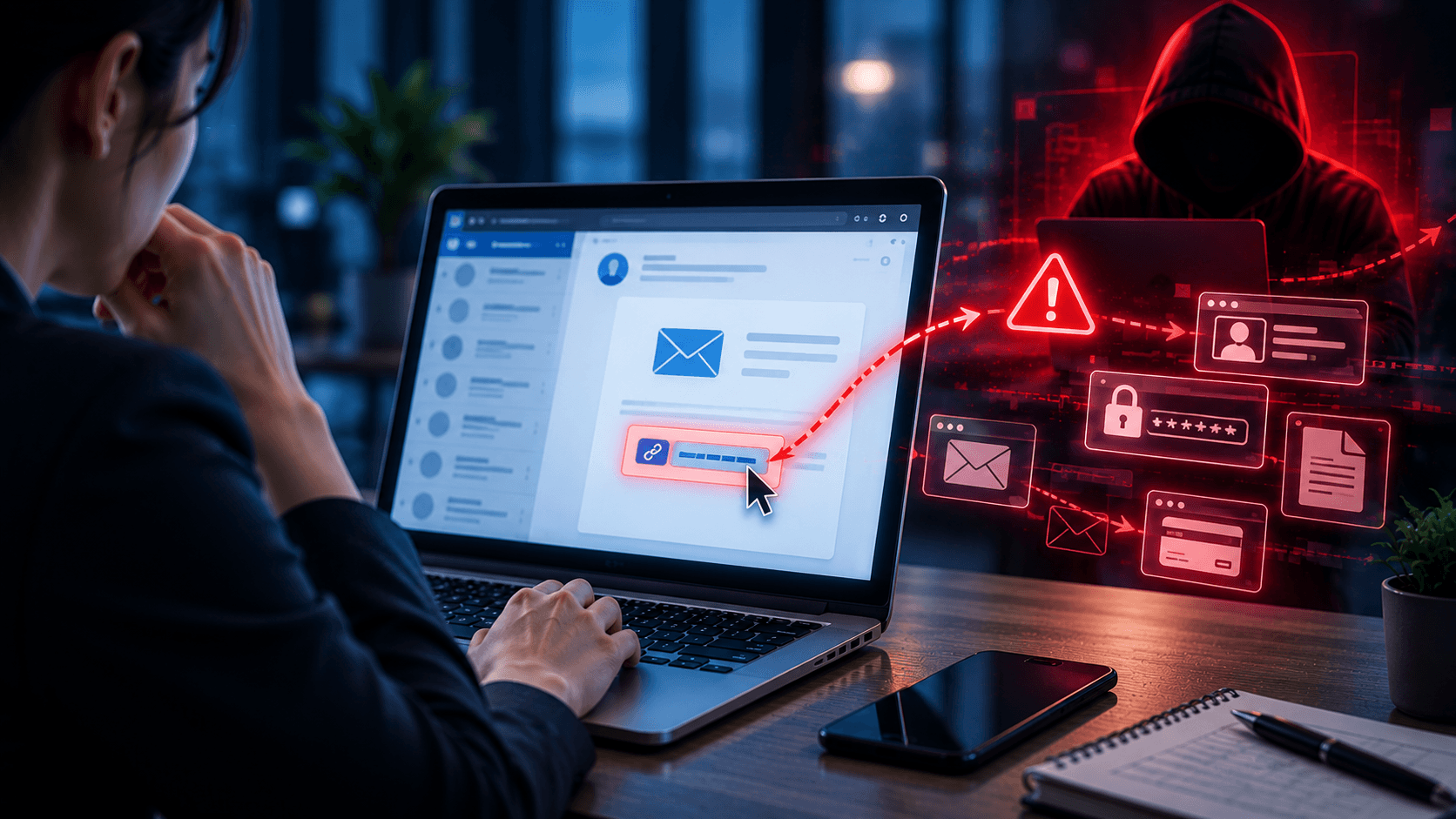
You receive an email that looks legitimate.
Maybe it says:
“Your Microsoft 365 password expires today.”
Or:
“Please review the attached invoice.”
You click the link.
Then something feels wrong.
Maybe the website looks unusual. Maybe you notice the web address is not correct. Or perhaps you have already entered your password.
What should you do now?
First, don't ignore it.
Clicking a phishing link does not always mean your account or device has been compromised. What matters most is what happened after you clicked.
The actions you should take are different depending on whether you:
Only clicked the link
Entered a password
Entered a verification code
Approved an MFA request
Downloaded or opened a file
Entered financial information
Sent confidential business information
The faster you report what happened, the faster your company can check the risk and respond.
Quick Answer: What Should I Do After Clicking a Phishing Link?
If you clicked a suspicious link:
Stop interacting with the website.
Do not enter any more information.
Close the suspicious page.
If you entered a password, change it through the real service.
If you approved an unexpected MFA request, report it immediately.
If you downloaded or opened a suspicious file, stop using it and contact IT/security.
Report exactly what happened to your IT or security contact.
Watch for unusual account activity.
Most importantly:
Don't hide the mistake. Report it quickly.
A fast response can make a major difference.
Is Clicking a Phishing Link Enough to Get Hacked?
Not necessarily.
There is an important difference between:
Clicking a link
and
Giving the attacker something after clicking it.
For example, you may click a phishing link and immediately close the page without entering anything.
That is different from entering your business email password into a fake login page.
However, clicking a suspicious link can still create risk. A malicious website may attempt to collect information about your browser or device, redirect you to another malicious page, or convince you to download something.
So even if you only clicked:
Report it and let the appropriate team check.
Scenario 1: I Clicked the Link but Entered Nothing
This is generally less serious than entering credentials, but you should still take action.
What should you do?
Close the page.
Do not:
Click anything else
Download files
Allow browser notifications
Install extensions
Enter information
Follow additional instructions from the website
If this happened on a company device, report the incident to IT or your security contact.
Tell them clearly:
“I clicked the link, but I did not enter any information or download anything.”
That detail matters.
Your security team can then determine whether the website or device needs further checking.
Scenario 2: I Entered My Password
This requires more urgent action.
If you entered your password into a phishing website, assume the attacker may now have that password.
Do not return to the suspicious website to change it.
Instead, open the legitimate service directly.
For example, if the phishing page pretended to be Microsoft 365:
Open Microsoft 365 through your normal application or trusted website – not through the email.
Then:
Change the compromised password.
Use a new, unique password.
Report the incident immediately.
Review recent account activity where available.
Check whether unfamiliar devices or sessions appear.
Follow your company's instructions for securing the account.
If you reused the same password elsewhere, those accounts may also need attention.
Attackers often try stolen passwords on other services.
Scenario 3: I Entered My Password and MFA Code
This can be more serious.
MFA provides an important additional layer of protection, but attackers may create fake login pages that capture both your password and the verification code.
If you entered both:
Report it immediately.
Your IT or security team may need to check whether the attacker successfully accessed the account and whether any active sessions need to be removed.
Do not assume:
“I have MFA, so I'm safe.”
Tell the team exactly what you entered.
Scenario 4: I Approved an MFA Request
You receive a login approval request on your phone.
You are busy and tap Approve.
Then you realize:
“I wasn't trying to log in.”
Treat this seriously.
Someone may have your password and may be attempting to use your approval to access the account.
Contact IT/security immediately and explain:
“I approved an MFA request that I did not initiate.”
They can investigate whether an unauthorized login occurred.
As a general rule:
Never approve an authentication request you did not initiate.
Scenario 5: I Downloaded a File
A phishing page may ask you to download:
A PDF
A ZIP file
A document
An application
A browser extension
A fake security update
Downloading a file does not automatically mean the device is infected.
But do not open or run it just to find out what it is.
If it is a company device, report the download to IT/security and provide the file name and source if possible.
Let the appropriate team determine whether it is safe.
Scenario 6: I Opened or Ran the Downloaded File
This creates a higher risk than simply downloading it.
Stop interacting with the suspicious file.
Contact IT or security as soon as possible.
Tell them:
What you downloaded
Where it came from
Whether you opened it
Whether you installed anything
Whether the computer behaved differently afterward
Follow your organization's incident-response instructions. Depending on the situation, IT may ask you to disconnect the device from the network or take other steps.
Do not start randomly deleting files or installing security tools yourself, as this can make investigation more difficult.
Scenario 7: I Entered Credit Card or Banking Information
If you provided financial information to a phishing website, contact the relevant bank or payment provider immediately.
Tell them the information may have been exposed through phishing.
Depending on what was shared, they can advise on appropriate actions such as monitoring, blocking, or replacing the affected payment method.
For a business account, notify your Finance team and management as well.
Speed matters when financial information is involved.
Scenario 8: I Sent Confidential Business Information
Sometimes phishing is not trying to steal your password.
The attacker may ask you to send:
Customer information
Employee records
Contracts
Financial documents
Source code
Internal reports
Payment information
If you sent sensitive business information, report exactly what was shared.
This helps the organization understand:
What data was exposed?
Who may be affected?
What systems or customers are involved?
Does the business need to take additional action?
Do not delete the email or conversation. It may be needed for investigation.
What Should You Tell IT or Security?
Employees sometimes report:
“I think I clicked something bad.”
That's useful, but more detail is better.
Tell them:
What happened:
“I clicked a link in an email.”
What happened next:
“A Microsoft login page appeared.”
What you entered:
“I entered my email and password but no MFA code.”
What you downloaded:
“I downloaded a PDF but did not open it.”
When it happened:
“About 10 minutes ago.”
Which device:
“My company laptop.”
This information helps the security team understand the risk much faster.
Should I Delete the Phishing Email?
Not immediately.
Your IT or security team may need the message to investigate:
Who sent it
Which link was used
Who else received it
Whether other employees clicked it
Whether the sender account was compromised
Instead of deleting the email, follow your company's phishing reporting process.
Once reported, the security team may be able to protect other employees from the same attack.
Should I Change My Password After Clicking a Phishing Link?
It depends on what happened.
If you only clicked and did not enter your password, changing it may not always be necessary.
If you entered your password on the phishing website, you should treat that password as exposed and change it through the legitimate service.
The important distinction is:
Clicked only ≠ Entered credentials
This is why employees should report exactly what they did rather than simply saying:
“I clicked phishing.”
What If I Reuse the Same Password?
If you entered a reused password into a phishing website, the risk may extend beyond one account.
Attackers can try the stolen username and password on other services.
This is one reason every important account should use a unique password.
If you reused the compromised password, identify the other affected accounts and replace it there as well.
Never change passwords through links sent in the phishing email.
What Should Businesses Do After an Employee Clicks Phishing?
The goal should not be to blame the employee.
The priority is to understand what happened and stop the attack from spreading.
Depending on the incident, the business may need to:
Investigate the suspicious link
Check the employee's device
Review account login activity
End suspicious sessions
Reset compromised credentials
Check mailbox rules and settings
Search for the phishing email across the organization
Identify other employees who interacted with it
Check whether sensitive data was accessed
Block related malicious activity
A quick employee report gives the business more time to respond.
Why Fast Reporting Matters
Imagine two employees enter their passwords into the same phishing page.
Employee A reports it five minutes later.
Employee B says nothing because they feel embarrassed.
With Employee A, the security team can quickly investigate and take steps to secure the account.
With Employee B, the attacker may have more time to:
Access email
Read business conversations
Steal information
Send phishing from the real account
Target colleagues
Attempt financial fraud
The mistake may be the same.
The outcome can be very different because of response time.
A Simple Phishing Response Checklist
If you clicked a phishing link, remember:
Clicked only?
Close it and report it.
Entered a password?
Change it through the legitimate service and report it.
Entered an MFA code?
Report immediately.
Approved an unexpected login?
Report immediately.
Downloaded something?
Do not open it. Report it.
Opened a suspicious file?
Stop and contact IT/security.
Entered banking information?
Contact the bank/payment provider and your company immediately.
Shared confidential data?
Report exactly what information was sent.
Most importantly:
Do not wait to see whether something bad happens.
Key Takeaways
Clicking a phishing link does not automatically mean everything is compromised.
But what you do next matters.
The most important questions are:
What did you click?
What information did you enter?
Did you download or open anything?
Did you approve a login?
Then act quickly.
For employees, the best response is simple:
Stop → Report → Explain exactly what happened → Follow IT/security instructions
A phishing click can happen in seconds.
A fast response can prevent it from becoming a much larger security incident.
Frequently Asked Questions
What should I do immediately after clicking a phishing link?
Stop interacting with the website, close it, do not enter additional information, and report the incident to IT/security if it involves a business device or account.
Am I hacked if I clicked a phishing link?
Not necessarily. The level of risk depends on what happened after the click, such as whether you entered credentials, downloaded a file, installed software, or approved a login.
What if I clicked a phishing link but entered nothing?
Close the page and report what happened. Tell IT/security specifically that you did not enter information or download anything.
What if I entered my password on a phishing website?
Treat the password as exposed. Access the legitimate service directly, change the password, and report the incident promptly.
What if I entered my password but have MFA?
MFA reduces risk, but you should still report the incident. Attackers may attempt to capture verification codes, steal sessions, or trick you into approving a login.
Should I disconnect my computer from the internet?
Not every phishing click requires this. If you opened or ran suspicious software, contact your IT/security team immediately and follow their instructions, including disconnecting the device if they advise it.
Related Articles
Sep 24, 2026
Real or Fake? Google Account Security Alert
Got a Google Account security alert? Learn how to tell if it is real or phishing, verify it safely, and protect your account without clicking suspicious links.
Sep 18, 2026
What is Invoice Fraud and How can employees spot it?
Learn how invoice fraud works, how attackers fake supplier payment requests, the warning signs employees should check, and how to verify invoices safely.
Sep 17, 2026
What Is DLP for AI and Why do Businesses need t?
Learn what DLP for AI is, how it prevents employees from sharing sensitive business data with AI tools, and why businesses need AI data protection.

Protect your business with ShieldNet 360
Get started and learn how ShieldNet 360 can support your business.