
Sep 9, 2026
BlogHow to verify a suspicious email without clicking anything
You receive an email saying:
“Your Microsoft 365 password expires today. Sign in now to keep your account active.”
It looks professional. The company logo is there. Your name is correct. There is even a button that looks legitimate.
Should you click it to find out?
No.
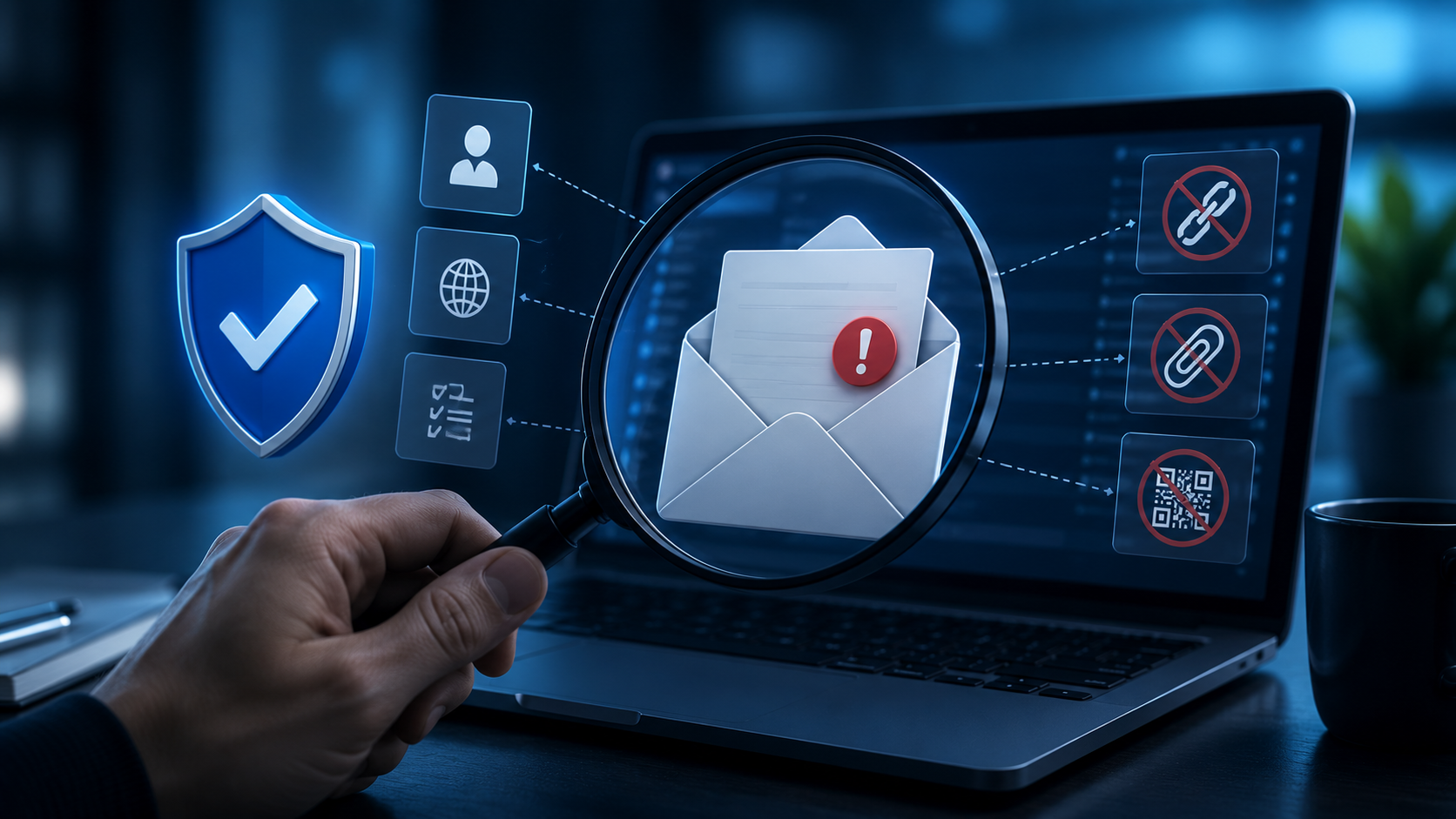
If you suspect an email could be phishing, you can verify many things without clicking a link, opening an attachment, scanning a QR code, or replying to the message.
Here is a simple process every employee can follow.
Quick Answer: How Can You Verify a Suspicious Email Safely?
If an email looks suspicious:
Don't click links, open attachments, scan QR codes, or reply.
Check the full sender email address.
Look for unusual requests or urgency.
Ask whether you were expecting the message.
Verify the request through another trusted channel.
Open the official website or application yourself.
Report the email if you still cannot verify it.
The most important rule is simple:
Verify the request without using the suspicious email itself.
1. Stop Before You Interact With the Email
The first step is also the easiest:
Don't do what the email asks yet.
Avoid:
Clicking links
Opening attachments
Scanning QR codes
Replying to the sender
Calling a new phone number provided in the email
Entering your password
Approving an unexpected MFA request
You do not need to prove that an email is malicious before being cautious.
Give yourself time to verify it first.
2. Check the Full Sender Address
A familiar display name does not mean the email is legitimate.
For example, your inbox may show:
Microsoft Support
or:
David Nguyen – CEO
But the actual email address could be completely unrelated.
Look at the full sender address and pay attention to the domain after the @ symbol.
For example:
Expected: [email protected]
Suspicious: [email protected]
Attackers often use addresses and domains that look similar enough to fool someone reading quickly.
Remember:
Check the address, not just the name.
However, a correct address does not guarantee that an email is safe. A legitimate email account can also be compromised.
3. Ask: Was I Expecting This Email?
Context is one of the easiest ways to identify something unusual.
Ask yourself:
Did I request a password reset?
Am I expecting this invoice?
Did someone tell me they would share this document?
Am I working with this supplier?
Was I expecting this delivery?
Does this person normally contact me about this?
An unexpected email is not automatically phishing.
But an unexpected email that also asks you to log in, pay, download, scan, or share information deserves more attention.
4. Look at What the Email Wants You to Do
Instead of focusing only on how the email looks, focus on the requested action.
Be especially careful when an email asks you to:
Enter a password
Reset your account
Approve MFA
Transfer money
Change bank details
Open an unexpected file
Share customer information
Send employee data
Provide confidential documents
Scan a QR code
Act outside normal company procedures
A professional-looking email can still contain a dangerous request.
A useful question is:
“What happens if I do exactly what this email asks?”
If the answer involves giving someone access, money, credentials, or sensitive information, verify the request first.
5. Watch for Urgency and Pressure
Phishing emails often try to reduce the amount of time you have to think.
Common examples include:
“Your account will be suspended today.”
“Payment required immediately.”
“Respond within 30 minutes.”
“Your mailbox is full. Verify now.”
“CEO request – confidential and urgent.”
The email may even tell you not to contact someone:
“I'm in a meeting, so don't call.”
Urgency does not automatically mean an email is fake.
But urgency combined with an unusual or sensitive request is a strong reason to verify.
6. Verify the Sender Through Another Channel
Suppose your CEO emails:
“Please transfer this payment urgently.”
Do not reply:
“Is this really you?”
If the attacker's email account is fake – or the real account has been compromised – the attacker can simply reply:
“Yes.”
Instead, verify through an independent channel.
For example:
Call a phone number you already have
Use the company directory
Send a message through your normal internal communication platform
Speak to the person directly
Ask the relevant department
For a supplier payment change, contact the supplier using a previously verified number, not a new number provided in the email.
This is called out-of-band verification, but employees do not need to remember the technical term.
The principle is simply:
Don't use the suspicious message to verify itself.
7. Open the Official Website or App Yourself
Imagine receiving an email saying:
“Your Microsoft 365 account has been locked. Click here to verify your identity.”
You don't need to click the link to check whether there is really a problem.
Instead:
Close or leave the email.
Open your normal browser or application.
Access the service the way you normally do.
Check your account there.
The same principle applies to:
Microsoft 365
Google Workspace
Banks
Cloud applications
Delivery services
Online stores
Business software
If the warning is legitimate, you can often see the issue after accessing the real service directly.
8. Don't Trust an Email Just Because the Branding Looks Real
Logos are easy to copy.
So are:
Colors
Signatures
Email templates
Company names
Profile photos
Legal disclaimers
Attackers can create emails that look almost identical to legitimate Microsoft, Google, bank, supplier, or company messages.
AI can also help criminals produce polished emails without obvious spelling or grammar mistakes.
Therefore:
Professional design is not proof that an email is safe.
9. Be Careful With Existing Email Conversations
One particularly difficult attack happens when criminals gain access to a legitimate email account.
They may read previous conversations and reply directly inside a real email thread.
For example:
You have been discussing an invoice with a supplier.
Then you receive:
“We've changed our bank account. Please use the details below for this payment.”
The previous emails are real.
The supplier's email address may also be real.
But the latest request could still come from an attacker controlling the account.
Any significant change involving payments, confidential information, credentials, or business processes should still be verified separately.
10. Report the Email When You're Still Unsure
Sometimes an email simply cannot be verified by the employee.
That's okay.
Employees should not need to become phishing investigators.
If you remain unsure:
Do not interact with the email.
Report it according to your company's process.
Tell IT or the security team what made you suspicious.
Wait for confirmation before taking the requested action.
It is much easier to investigate a suspicious email before someone enters a password or transfers money.
A Simple 60-Second Suspicious Email Checklist
Before acting on an unusual email, ask:
Sender: Is the full email address correct?
Context: Was I expecting this message?
Request: What exactly am I being asked to do?
Urgency: Is someone pressuring me to act immediately?
Information: Am I being asked for money, passwords, data, or access?
Process: Does this request follow our normal business process?
Verification: Can I confirm it through another trusted channel?
If something does not make sense, stop and verify.
What If the Email Comes From a Real Address?
A real email address does not always mean a real request.
Attackers can compromise legitimate accounts belonging to:
Employees
Executives
Suppliers
Customers
Business partners
Once inside, they may send fraudulent messages from the genuine mailbox.
This is why employees should verify unusual requests, not only email addresses.
A real supplier suddenly asking you to send payment to a new bank account should still be verified.
What If You Already Clicked the Email?
Report it quickly.
Explain exactly what happened.
For example:
“I clicked the link but entered nothing.”
“I entered my password.”
“I opened the attachment.”
“I scanned the QR code.”
“I approved the MFA request.”
“I sent the requested document.”
“I made the payment.”
Different actions create different risks.
Giving IT or your security contact accurate information helps them determine what needs to happen next.
Do not hide a mistake because you are embarrassed. Delayed reporting gives an attacker more time.
The Best Habit: Stop, Check, Verify
Phishing is becoming harder to recognize by appearance alone.
A suspicious email may have:
Perfect grammar
The correct company logo
Your real name
A familiar sender
A convincing business reason
An existing email conversation
Instead of trying to identify phishing purely by appearance, employees should develop a simpler habit:
Stop → Check → Verify
When an email asks you to do something unusual or sensitive, verify the request independently before acting.
That one habit can stop many different types of email attacks.
Frequently Asked Questions
How can I check whether an email is phishing without clicking it?
Check the full sender address, consider whether the email was expected, review what it is asking you to do, and verify the request through another trusted channel. Do not use links or contact information inside the suspicious email to verify it.
Can I reply to ask whether a suspicious email is real?
It is safer to verify through another channel. If an attacker controls the sender's account, they can simply reply and confirm the fraudulent request.
Should I click a suspicious link to see where it goes?
No. You do not need to visit the website to verify the email. Open the official website or application independently instead.
Is an email safe if the sender address is correct?
Not necessarily. A legitimate account may have been compromised. Unusual requests involving payments, passwords, confidential data, or changes to normal processes should still be verified.
Is an email safe if there are no spelling mistakes?
No. Modern phishing emails can be professional and grammatically correct. Do not use spelling quality as your main method of deciding whether an email is legitimate.
What should I do if I cannot tell whether an email is phishing?
Do not interact with it. Report the email to your IT or security contact and wait for confirmation before taking the requested action.
Related Articles
Oct 22, 2026
Real or Fake? HR Asking You to Review Payroll
Got an email from HR asking you to review payroll? Learn how to identify fake payroll emails, verify HR requests, and protect your salary and bank details.
Oct 9, 2026
I replied to a phishing email. Am I at risk?
Replied to a phishing email? Learn what risks you face, what attackers can learn from your reply, and what to do next to protect your account and business.
Oct 8, 2026
Real or Fake? How to verify a sharepoint file invitation
Received a SharePoint file invitation? Learn how to spot fake SharePoint emails, verify shared files safely, and protect your Microsoft 365 account from phishing.

Protect your business with ShieldNet 360
Get started and learn how ShieldNet 360 can support your business.