
Nov 12, 2026
BlogWhat is Attachment Phishing and How can you spot it?
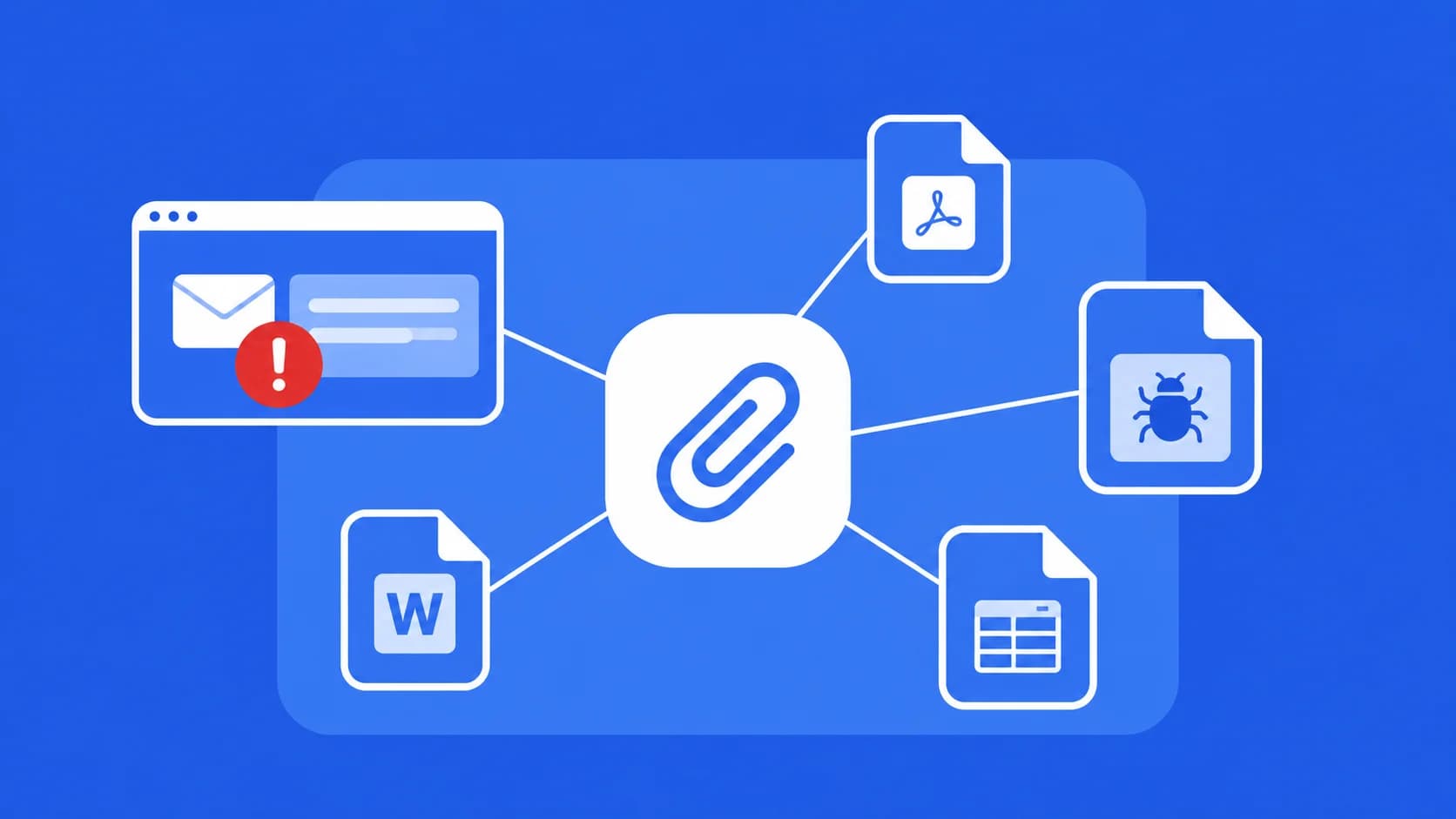
You receive an email from someone who appears to be a supplier.
The subject says: "Invoice for Your Review – Payment Due Tomorrow"
There's a PDF attached.
The sender's name looks familiar, the invoice number seems legitimate, and the email doesn't contain any suspicious links.
You open the attachment.
But instead of an invoice, the document asks you to click a link to view the full payment details.
Could this be a phishing attack? Yes.
Phishing doesn't always involve suspicious links in the email itself. Sometimes, attackers hide malicious links, fake login requests, or harmful software inside attachments that look like ordinary business documents.
These attacks are known as attachment phishing.
And because employees regularly exchange invoices, contracts, resumes, financial reports, and other files, malicious attachments can be particularly convincing.
Quick Answer: What Is Attachment Phishing?
Attachment phishing is a type of email attack in which cybercriminals use attached files to trick recipients into revealing sensitive information, downloading malware, or performing fraudulent actions.
Common examples include:
A fake invoice PDF containing a phishing link.
A Word document asking you to enable macros.
An Excel spreadsheet containing malicious code.
An HTML attachment displaying a fake Microsoft 365 login page.
A ZIP file hiding a malicious executable.
A fake HR document asking for employee credentials.
The key warning: An attachment can be dangerous even if the email contains no visible links.
How Does Attachment Phishing Work?
Most attachment phishing attacks follow a similar process.
Step 1: The Attacker Sends a Convincing Email
The attacker impersonates a trusted person or organization, such as:
A supplier sending an invoice.
HR sharing payroll information.
A customer sending a purchase order.
A manager sharing a confidential document.
A recruitment candidate sending a resume.
An accounting team sending a financial report.
The message usually gives the recipient a reasonable excuse to open the file.
For example:
"Please review the attached contract and confirm by the end of today."
Step 2: The Attachment Looks Legitimate
The file may have a familiar name, such as:
Invoice_November.pdf
Employee_Payroll_Update.xlsx
Contract_Review.docx
Candidate_Resume.zip
These names are designed to make the attachment appear relevant to the recipient's work.
Step 3: The File Triggers a Dangerous Action
Depending on the attack, the attachment may:
Contain a link to a fake login page.
Ask the user to enable macros or other active content.
Attempt to run malicious code.
Direct the user to download another file.
Display fraudulent payment instructions.
Request confidential business information.
Not every malicious attachment automatically infects a device when opened. Some attacks depend on the user clicking another link or approving an action.
However, certain file types and software vulnerabilities can make opening a malicious attachment dangerous on its own.
Step 4: The Attacker Attempts to Steal Data or Access
If the attack succeeds, the attacker may obtain:
Email passwords.
Microsoft 365 or Google Workspace credentials.
Financial information.
Customer records.
Confidential company documents.
Access to employee devices or business systems.
In some cases, attackers may use the compromised account to send additional malicious attachments to colleagues or business partners.
6 Common Types of Attachment Phishing
1. Fake Invoice PDF Attachments
One of the most common business scenarios involves an email that appears to come from a supplier.
The email says:
"Please see the attached invoice for your pending payment."
The PDF may display a message:
"To view the complete invoice, please verify your Microsoft 365 account."
The link leads to a fake login page.
The attacker may be trying to steal your business credentials rather than collect the invoice payment directly.
Warning sign: A routine invoice unexpectedly requires you to enter your email password to view its contents.
2. Malicious Word Documents
An attacker sends a Word document that looks like a contract, internal memo, or business proposal.
When opened, the document may ask:
"Enable Content to view the document correctly."
This may be an attempt to convince you to enable macros or other active features.
Modern Microsoft Office versions block many internet-sourced macros by default, but attackers may still use social engineering to persuade users to bypass protections.
Warning sign: A document asks you to disable security settings or enable active content for an unexpected file.
3. Fake Excel Financial Reports
An employee receives an Excel file titled:
Q4_Financial_Report.xlsx
The email claims it contains important financial information.
The attachment may contain malicious links, misleading instructions, or, in certain file formats, potentially dangerous active content.
Not every spreadsheet can execute macros. For example, standard .xlsx files do not contain VBA macros, while macro-enabled .xlsm files can.
Warning sign: An unexpected spreadsheet requests additional downloads, unusual permissions, or changes to security settings.
4. HTML Attachments That Imitate Login Pages
An email contains a file such as:
Secure_Document.html
When opened, the file displays a page resembling a Microsoft 365, Google, or corporate login screen.
The page may ask for your email address and password.
Unlike a normal web link, the fake login interface may be delivered directly inside the attachment.
Warning sign: An attached HTML file unexpectedly asks you to sign in to a business account.
5. ZIP Files Hiding Malicious Software
An attacker sends a compressed file such as:
Payment_Documents.zip
The ZIP archive may contain a script, executable, shortcut, or another dangerous file.
The attacker may claim the file is compressed for convenience or confidentiality.
Warning sign: A business document requires you to extract an archive and run an unfamiliar file.
6. Fake HR or Payroll Attachments
The email appears to come from HR:
"Please review your updated salary statement."
The attachment may contain a fake payroll form asking employees to enter personal information, banking details, or account credentials.
Some attacks use legitimate-looking PDFs with links to fraudulent HR portals.
Warning sign: An unexpected payroll attachment asks you to provide sensitive information outside your company's official HR system.
7 Warning Signs of a Malicious Email Attachment
1. You Weren't Expecting the File
An unexpected attachment deserves additional attention.
For example, you receive a contract from a supplier you haven't worked with recently.
Or an unknown person sends a resume when your company isn't recruiting.
An unexpected file isn't automatically malicious, but you should verify its purpose before opening it.
2. The Email Creates Urgency
Attackers frequently use deadlines to pressure recipients.
Examples include:
"Payment overdue. Review immediately."
"Your salary will be delayed unless you open the attachment."
"Legal action will begin if you don't respond today."
The goal is to make you act before checking whether the request is legitimate.
3. The Attachment Has an Unusual File Type
Be cautious with unexpected files ending in:
.exe – Executable program.
.js – JavaScript file.
.vbs – Script file.
.bat or .cmd – Command scripts.
.scr – Executable screensaver file.
.lnk – Windows shortcut.
.html or .htm – Web page files that may contain fake login forms.
.zip – Compressed archives that may hide other file types.
These extensions aren't always malicious, but they deserve scrutiny when delivered unexpectedly by email.
4. The File Asks You to Enable Macros or Disable Security
A suspicious document may display instructions such as:
"Enable Editing and Enable Content to continue."
Or:
"Disable antivirus protection to open this file."
These are serious warning signs.
Legitimate business documents should not require you to bypass security protections without an approved business reason.
5. The Sender Looks Familiar, but the Request Is Unusual
An email may appear to come from your manager or a trusted supplier.
However, the attachment may be completely unexpected.
Remember that attackers can impersonate senders or use compromised email accounts.
A familiar sender does not guarantee a safe attachment.
6. The Attachment Requests Login Credentials
A PDF, spreadsheet, or HTML attachment may ask you to enter your Microsoft 365 password or an MFA code.
Be cautious when an attached document unexpectedly directs you to authenticate.
Instead, access the legitimate service independently and verify the request.
7. The Attachment Leads to Another Download
The attached file may contain a message such as:
"This document is too large to display. Download the viewer to continue."
The additional download may be malicious.
Avoid installing unfamiliar software simply because an email attachment instructs you to do so.
Are PDF Attachments Safe?
Not automatically.
PDF files are widely used in business, and most legitimate PDFs are harmless.
However, attackers can use PDFs to:
Hide phishing links.
Display fake login instructions.
Show fraudulent payment details.
Direct users to malicious downloads.
Exploit vulnerabilities in outdated PDF software.
A PDF does not have to contain executable malware to be part of a phishing attack.
For example, a fake invoice PDF may simply direct employees to a fraudulent payment portal.
The safest approach is to verify unexpected PDFs before opening them and avoid following unverified instructions inside them.
Can a Malicious Attachment Come From a Real Email Address?
Yes.
Suppose a supplier's email account has been compromised.
The attacker may send an email from that supplier's legitimate address, attaching a document that appears to be a normal invoice.
The email may include:
The supplier's real name.
Their actual company domain.
A familiar email signature.
An existing email conversation.
A realistic invoice attachment.
Because the sender is legitimate, employees may not notice anything suspicious.
This is why checking only the sender's address is not enough.
Always verify unexpected attachments and unusual requests, even when they appear to come from trusted contacts.
How to Check an Email Attachment Before Opening It
Step 1: Ask Whether You Expected the File
Consider:
Was I expecting this attachment?
Does the filename match the sender's request?
Is this related to a current project or business transaction?
If the attachment is unexpected, verify it first.
Step 2: Check the Sender
Look at the full sender address.
Watch for unfamiliar domains or unusual spelling.
However, remember that real accounts can be compromised.
Step 3: Inspect the File Type
Check the attachment's full filename and extension.
Be especially cautious if a supposed invoice or report is actually an executable, script, shortcut, or compressed archive.
On some devices, file extensions may be hidden by default, so the visible filename alone may be misleading.
Step 4: Verify Through a Trusted Channel
If a colleague or supplier sends an unexpected file, contact them through an existing trusted channel.
For example:
"I received an invoice attachment from your email. Did you send it?"
Do not rely on a new phone number or contact address supplied only in the suspicious message.
Step 5: Follow Your Company's Security Process
If the attachment looks suspicious, report it to IT or security.
Avoid downloading or opening it merely to investigate.
Your security team can examine it using appropriate tools and procedures.
What Should I Do If I Already Opened a Suspicious Attachment?
The response depends on what happened after you opened it.
Scenario 1: I Opened a PDF but Didn't Click Anything
If you only opened the PDF and didn't interact with its contents, the risk may be lower.
However, opening a malicious file can still pose a risk in some circumstances, particularly if the software has an exploitable vulnerability.
What to do:
Close the document.
Report the incident to IT/security.
Explain what file you opened and when.
Mention any unexpected behavior, downloads, or warnings.
Scenario 2: I Clicked a Link Inside the Attachment
Stop interacting with the website.
If you didn't enter any information, report the incident and follow your company's guidance.
If you entered credentials or sensitive data, additional protective actions are necessary.
Scenario 3: I Entered My Password
Treat the password as potentially exposed.
Access the legitimate service directly.
Change the exposed password immediately.
Notify IT/security.
Review account activity with your security team.
Follow instructions for securing active sessions and authentication methods.
Scenario 4: I Enabled Macros or Ran a File
This may create a serious risk of malware infection.
What to do immediately:
Stop using the suspicious file.
Notify IT/security immediately.
Follow your organization's instructions for isolating the device.
Do not attempt to remove evidence or investigate the malware yourself.
Your security team may need to examine the device for malicious activity.
Scenario 5: I Sent Confidential Information
If the attachment led you to share customer records, financial information, or internal documents:
Stop communicating with the sender.
Report the incident immediately.
Identify exactly what information was shared.
Preserve the related email and files.
Follow your organization's data incident-response process.
Why Attachment Phishing Is Dangerous for Businesses
A successful attachment phishing attack can affect more than one employee.
Depending on the attack, the consequences may include:
Stolen employee credentials.
Malware infection on business devices.
Unauthorized access to company accounts.
Exposure of customer or employee data.
Fraudulent payments.
Ransomware incidents.
Business email compromise.
Disruption to business operations.
For example, an attacker may use a malicious attachment to compromise an employee account, then send fraudulent invoices to that employee's business contacts.
This can turn one suspicious attachment into a wider attack affecting customers, suppliers, and colleagues.
How Can Businesses Prevent Attachment Phishing?
1. Use Email Security to Detect Suspicious Attachments
Email security solutions can help identify potentially malicious attachments, phishing links, suspicious senders, and unusual email behavior.
More advanced protection can also examine the context of a message rather than relying only on known malicious files or sender reputation.
2. Keep Software Updated
Maintain security updates for operating systems, browsers, office applications, and PDF readers.
Updates can reduce the risk of attackers exploiting known vulnerabilities.
3. Restrict Dangerous File Types
Organizations can apply appropriate controls to high-risk attachments, scripts, executables, and macro-enabled documents.
The goal is to reduce unnecessary exposure without disrupting legitimate work.
4. Protect Employee Devices
Endpoint security can help detect and respond to malicious activity if a harmful attachment is opened or executed.
This provides another layer of protection when email-based controls fail.
5. Train Employees to Recognize Suspicious Attachments
Employees should understand that:
A familiar sender can be compromised.
PDFs can contain phishing links.
Office documents may contain dangerous active content.
ZIP files can hide malicious files.
Unexpected requests should be verified independently.
6. Make Reporting Easy
Employees should know how to report: "I received a suspicious attachment" or: "I accidentally opened a file that might be malicious"
Fast reporting helps security teams investigate and potentially prevent the same attack from affecting others.
A 30-Second Attachment Safety Checklist
Before opening an email attachment, ask:
Expected? Was I waiting for this file?
Sender? Can I verify who sent it?
Filename? Does the file type match what I expected?
Urgency? Is the message pressuring me to act immediately?
Instructions? Does the file ask me to enable macros, disable security, or install software?
Credentials? Does it unexpectedly ask for passwords or verification codes?
Verification? Can I confirm the attachment through a trusted channel?
If you're unsure:
Don't open → Verify the sender → Report the attachment → Follow IT/security guidance.
Key Takeaways
Attachment phishing uses files that appear to be legitimate business documents to trick employees into revealing sensitive information, opening malicious links, or running harmful software.
These attacks may arrive as PDFs, Word documents, Excel spreadsheets, HTML files, or compressed archives.
The most important lesson is:
An email doesn't need a suspicious link to be a phishing attack. The danger may be inside the attachment.
Before opening an unexpected file, verify the sender, the business purpose, and the attachment type.
And if you accidentally open a suspicious attachment, report it quickly rather than trying to investigate it yourself.
Frequently Asked Questions
What is attachment phishing?
Attachment phishing is an email attack that uses attached files to steal information, deliver malware, or trick recipients into performing fraudulent actions.
Can opening a PDF attachment infect my computer?
It is possible, particularly if a malicious PDF exploits a vulnerability in outdated software. However, many PDF phishing attacks rely on users clicking embedded links or following fraudulent instructions rather than automatic infection.
Are Word and Excel attachments dangerous?
They can be. Attackers may use malicious links, misleading instructions, macros in supported file formats, or software vulnerabilities. Unexpected documents should be verified before opening.
Can a ZIP attachment contain malware?
Yes. ZIP files can contain executable programs, scripts, shortcuts, or other malicious files. Be cautious when an unexpected archive asks you to extract and run something.
What if I opened a phishing attachment but didn't click anything?
The risk depends on the file type and what happened when it opened. Close it and report the incident to IT/security, especially if you noticed unusual behavior.
How can businesses stop attachment phishing?
Businesses can combine email security, attachment filtering, software updates, endpoint protection, employee training, and clear reporting procedures.
Related Articles
Nov 13, 2026
N-able N-central security incident and lessons for protecting remote management
The N-central incident through 13 November 2026: Able2Shell, HF2, Legacy API controls and how ShieldNet 360 supports monitoring and response for RMM risks.
Nov 13, 2026
The MUJI security incident and lessons for protecting customer data
What MUJI's potential exposure of 1.09 million card records teaches retailers about login security, legacy data and monitoring with ShieldNet 360.

Nov 13, 2026
ShieldNet 360 at Dubai AI Festival 2026: Connecting AI, Cybersecurity and Business Growth
ShieldNet 360 joined Dubai AI Festival 2026 to showcase simpler cybersecurity for SMEs, connect with businesses, and explore secure AI-driven growth.

Protect your business with ShieldNet 360
Get started and learn how ShieldNet 360 can support your business.