
Oct 8, 2026
BlogReal or Fake? How to verify a sharepoint file invitation
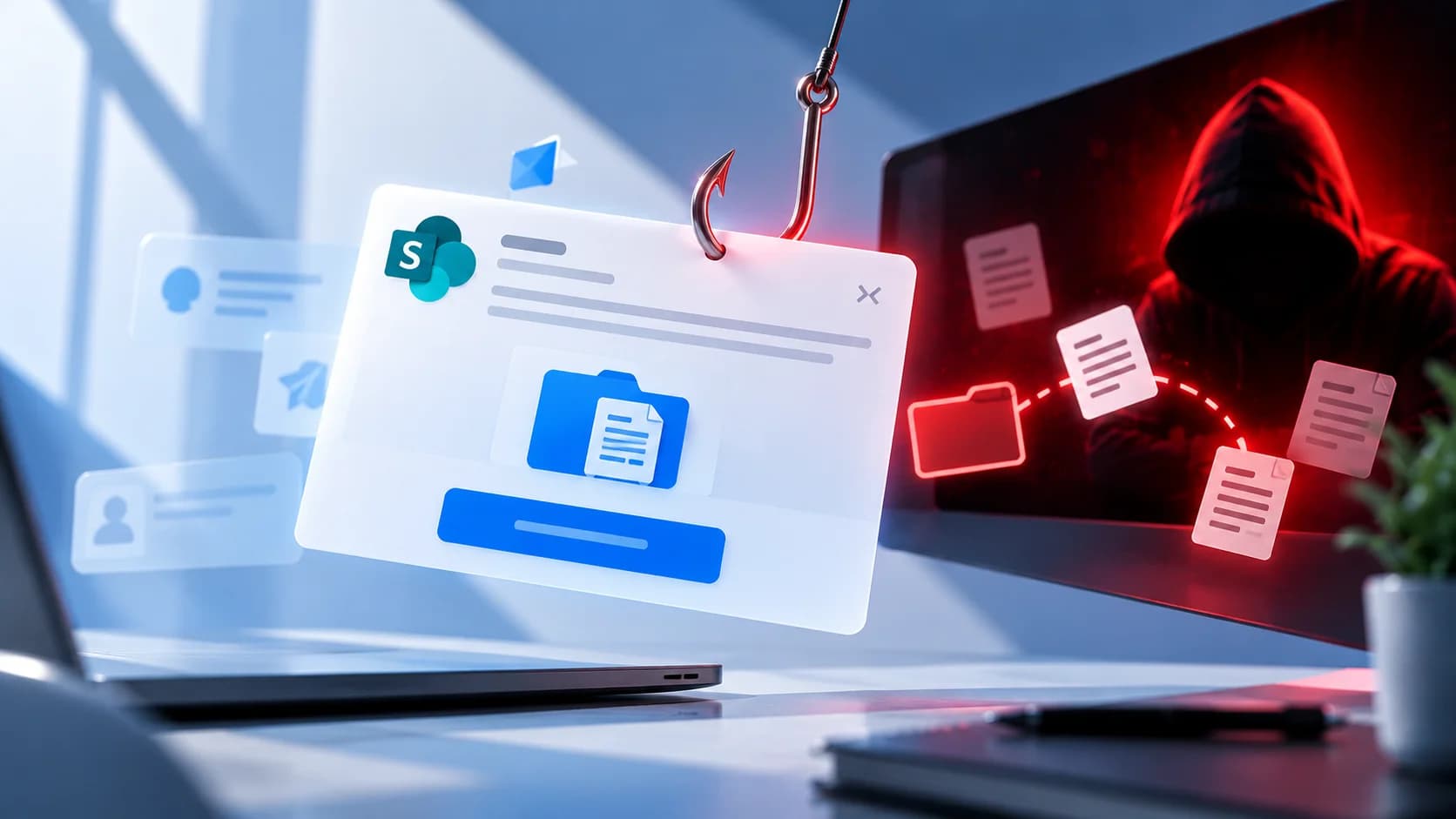
You receive an email that says: “A document has been shared with you on SharePoint. Click below to view the file.”
The email includes a familiar company name, a document title, and a button labeled Open.
It looks like a normal Microsoft 365 notification. Maybe it is a contract from a supplier, a financial report from your manager, or a project document from a colleague.
But what if the invitation is fake?
Cybercriminals often imitate SharePoint file-sharing notifications to trick employees into opening malicious links, entering passwords, or sharing confidential information.
Some attacks are even more convincing because they use real SharePoint links or compromised Microsoft 365 accounts.
So how can you tell whether a SharePoint invitation is legitimate?
The safest rule is simple: Don't trust a file invitation just because it looks like Microsoft. Verify the sender, the file, and the request before opening it.
Quick Answer: How Can You Tell If a SharePoint Invitation Is Real?
If you receive an unexpected SharePoint file invitation:
Don't click the link immediately.
Check who shared the file and whether you recognize them.
Ask yourself whether you were expecting the document.
Examine the link destination without opening it.
Open SharePoint or Microsoft 365 through your usual trusted method.
Look for the shared file in your account, if it is available there.
If necessary, contact the sender through a separate, trusted communication channel.
Never enter your password into an unexpected login page without verifying the website.
Remember:
A familiar Microsoft logo or legitimate-looking SharePoint link does not automatically mean the invitation is safe.
What Is a SharePoint File Invitation?
A SharePoint file invitation is a notification that someone has shared a document, folder, or other file with you using Microsoft SharePoint.
SharePoint is part of the Microsoft 365 ecosystem and is commonly used by businesses to store, organize, and share files.
For example, an employee might receive an invitation to access:
A contract from a supplier
A shared project folder
A financial spreadsheet
An HR document
A customer proposal
A company presentation
Legitimate SharePoint invitations can be sent to employees, customers, suppliers, or external partners.
Because these notifications are so common in business, attackers know that employees may open them without thinking twice.
What Does a Fake SharePoint Invitation Look Like?
A fake invitation may look almost identical to a genuine Microsoft notification.
For example:
Subject: A file has been shared with you
Sarah from Finance has shared a document with you.
Document: Q4 Financial Report.xlsx
Open Shared File
The message may include Microsoft's logo, familiar colors, and a professional layout.
But clicking the button could lead to a fake Microsoft 365 login page.
The attacker hopes you will enter your business email and password.
In other cases, the link may open a real SharePoint-hosted file containing malicious instructions or a link to another website.
This is why identifying SharePoint phishing requires more than checking whether the email looks professional.
Why Do Attackers Use SharePoint Invitations?
SharePoint invitations are attractive to attackers for several reasons.
1. Employees Are Used to Receiving Shared Files
Many employees receive file-sharing notifications every day.
Opening a document from a colleague or supplier feels like a normal part of work.
Attackers take advantage of this habit.
2. Microsoft Is a Trusted Brand
A notification that appears to come from Microsoft may feel more trustworthy than an unfamiliar email.
Attackers exploit that familiarity by copying Microsoft branding.
3. The Invitation Creates Curiosity
A document title such as: “Updated Salary Information” or “Confidential Contract for Review” can encourage employees to open the file quickly.
4. Attackers Can Use Real Microsoft Services
Not every phishing attempt uses an obviously fake website.
Attackers may abuse legitimate cloud-sharing services or compromised accounts to distribute malicious content.
As a result, a real SharePoint link is not always proof that the document itself is safe.
7 Signs a SharePoint File Invitation May Be Fake
1. You Weren't Expecting the File
You receive a document from someone you don't recognize.
Or a familiar colleague suddenly shares an unusual file without explanation.
For example:
“Confidential Payroll Changes.xlsx”
If the document is unexpected, verify it before opening.
An unexpected file is not automatically malicious, but it deserves closer attention.
2. The Email Creates Urgency
Be careful with messages such as:
“Review this document within 30 minutes.”
“Your access will expire today.”
“Immediate approval required.”
Some legitimate sharing links have expiration dates, but attackers frequently use urgency to pressure recipients into clicking.
3. The Sender's Address Looks Suspicious
The display name may say:
Microsoft SharePoint
but the actual email address may belong to an unrelated domain.
Check the full sender address rather than trusting the display name.
However, remember that a legitimate account can also be compromised.
A familiar sender is helpful evidence, not a guarantee of safety.
4. The Link Leads to an Unfamiliar Website
A fake invitation may direct you to a website designed to imitate Microsoft's sign-in page.
For example, the link may use a lookalike domain such as: sharepoint-login.example.com
This is an illustrative address, not a Microsoft service.
Be cautious of unexpected redirects and unfamiliar domains.
5. The File Asks You to Log In Again Unexpectedly
You open a shared document and suddenly see a Microsoft 365 login screen.
This does not automatically mean phishing. Legitimate sharing can require authentication.
But you should verify that the sign-in page is genuinely Microsoft's before entering credentials.
If something feels unusual, close the page and access Microsoft 365 directly.
6. The Document Asks You to Follow Another Link
Sometimes the SharePoint link itself is legitimate.
But the document contains a message such as:
“This document has moved. Click here to view the updated version.”
The new link may lead to a phishing website.
This technique uses a trusted file-sharing platform as the first step of the attack.
7. The File Requests Sensitive Information
Be cautious if the shared document unexpectedly asks you to provide:
Microsoft 365 passwords
MFA verification codes
Customer information
Financial records
Employee data
Payment information
A shared document should not automatically be trusted simply because it is hosted on SharePoint.
Real vs. Fake SharePoint Invitation: What Should You Check?
What to check | More reassuring | Warning sign |
Sender | Recognized and independently verified | Unknown or impersonated sender |
File | Expected document related to your work | Unexpected or unusual document |
Link | Verified Microsoft or approved company location | Lookalike domain or suspicious redirect |
Login | Normal authentication through a verified Microsoft service | Unexpected credential request on an unfamiliar website |
Content | Relevant document with an expected purpose | Instructions to open another suspicious link |
Urgency | Reasonable business request | Extreme pressure to act immediately |
Verification | Sender confirms through a trusted channel | Sender cannot be independently verified |
Important: None of these checks alone proves a file is safe. Look at the full context.
How to Verify a SharePoint Invitation Without Clicking the Email
You do not need to immediately follow the invitation link to determine whether the request is legitimate.
Step 1: Check Whether You Expected the Document
Ask yourself:
Was I expecting someone to share this file?
Does the document title make sense?
Is this related to a current project or conversation?
If the answer is no, investigate further.
Step 2: Check the Sender
Look at the full sender address.
If the message claims to come from a colleague or supplier, compare it with contact information you already trust.
Do not rely only on the display name.
Step 3: Inspect the Link
On a desktop, you can usually hover over a link to preview its destination without opening it.
On mobile, use the available link-preview feature cautiously, without selecting an option that opens the destination.
Look for unexpected domains or redirects.
However, a legitimate Microsoft-hosted link can still lead to malicious content, so this is not a complete safety check.
Step 4: Open Microsoft 365 Directly
Instead of using the email link, open your normal Microsoft 365 or SharePoint application.
You can also access the service through a trusted bookmark or your company's approved portal.
Check whether the file appears in your shared files or recent activity.
Keep in mind that some external sharing invitations may not appear in your normal file list until accepted.
Not finding the file does not automatically prove the invitation is fake.
Step 5: Verify With the Sender
If you're unsure, contact the person who supposedly shared the file.
Use an existing Teams conversation, a known phone number, or another previously trusted channel.
Ask:
“Did you just share a SharePoint document called Q4 Financial Report with me?”
If they confirm, you can continue using your organization's approved file-sharing process.
If they deny sending it, report the invitation.
Can a Phishing Invitation Use a Real SharePoint Link?
Yes.
This is one of the most important things employees should understand.
A phishing attempt does not always start with a fake domain.
An attacker may use a legitimate Microsoft 365 environment to host a document.
The shared file might contain:
A link to a fake login page
Instructions to provide sensitive information
A QR code leading to a phishing website
A malicious download
A request to contact a fraudulent email address
The first link may genuinely belong to SharePoint, while the dangerous action happens later.
This is why:
A real SharePoint link does not automatically mean the content is safe.
Can a SharePoint Invitation Come From a Compromised Account?
Yes.
Suppose a supplier's Microsoft 365 account has been compromised.
The attacker may use the supplier's legitimate account to send file invitations to customers and business partners.
The notification may contain:
The supplier's real name
Their legitimate email address
A real Microsoft-hosted sharing link
A familiar document title
Everything may appear normal.
But the attacker controls the shared content or the account sending it.
In this situation, checking the email address alone may not reveal the attack.
The safer approach is to verify unusual sharing requests independently.
What Should I Do If I Already Clicked a Fake SharePoint Invitation?
The appropriate response depends on what happened after you clicked.
If You Only Opened the Link
Close the suspicious page.
Do not enter information or download files.
Report the incident to your IT or security team, especially if you used a business device or account.
If You Entered Your Microsoft 365 Password
Treat the password as potentially exposed.
Access Microsoft 365 through the legitimate service and change the password immediately.
Notify IT/security so they can check for unauthorized access and take appropriate steps to secure the account.
If You Entered an MFA Code or Approved a Login
Report the incident immediately.
Attackers may attempt to use stolen verification codes or authentication approvals to access your account.
If You Downloaded or Opened a Suspicious File
Stop interacting with the file and contact IT/security.
Explain what you downloaded, whether you opened it, and whether you installed or enabled anything.
Follow your organization's instructions for checking or isolating the device.
If You Shared Confidential Information
Report exactly what information was sent or entered.
This may include customer records, financial information, employee data, or internal documents.
The security team can then assess the potential exposure.
Why SharePoint Phishing Is Dangerous for Businesses
A successful SharePoint phishing attack can lead to more than a stolen password.
Depending on the access obtained, attackers may be able to:
Read business emails
Access shared company documents
Download confidential information
Impersonate employees
Send malicious invitations to colleagues
Target suppliers or customers
Attempt payment fraud
Compromise additional business accounts
A single convincing file invitation can become the starting point of a larger business email compromise or data theft incident.
How Can Businesses Reduce SharePoint Phishing Risks?
Employee awareness is important, but businesses should also have technical and operational protections.
1. Protect Microsoft 365 Accounts
Use strong authentication, appropriate access controls, and monitoring for suspicious sign-ins and account changes.
2. Monitor Suspicious Sharing Activity
Review unusual external sharing, unexpected file permissions, and other suspicious document-sharing activity where monitoring is available.
3. Protect Business Email
Email security can help detect suspicious senders, impersonation, phishing links, and potentially compromised accounts.
4. Restrict Unnecessary External Sharing
Set appropriate sharing permissions based on business needs.
Not every file should be available to anyone with a link.
5. Train Employees to Verify Unexpected Invitations
Employees should learn to ask:
“Was I expecting this file?”
“Do I know who shared it?”
“Can I verify the request independently?”
6. Make Reporting Easy
Employees should know how to report a suspicious SharePoint invitation without needing to investigate it themselves.
A quick report may help protect other employees who received the same invitation.
A 30-Second SharePoint Invitation Checklist
Before opening a shared document, ask:
Expected? Was I waiting for this file?
Sender? Do I recognize and trust the person?
Purpose? Does the document make sense for my work?
Link? Does it lead somewhere unexpected?
Login? Is it asking for credentials on an unfamiliar page?
Content? Does the document ask me to open another link or provide sensitive information?
Verification? Can I confirm the invitation through a trusted channel?
When in doubt:
Don't click → Verify the sender → Open through a trusted service → Report if suspicious.
Key Takeaways
A SharePoint file invitation can be legitimate.
But attackers can also imitate Microsoft notifications, compromise real accounts, or abuse legitimate SharePoint links to deliver phishing content.
That means employees should not rely only on logos, sender names, or familiar-looking URLs.
The safest approach is simple:
Verify the file-sharing request, not just the invitation email.
Before opening an unexpected document, confirm who shared it, why it was shared, and whether the request makes sense.
Frequently Asked Questions
Are SharePoint file invitation emails legitimate?
Yes. Microsoft SharePoint supports legitimate file-sharing notifications. However, attackers can imitate these messages or abuse real sharing services, so unexpected invitations should be verified.
How can I tell if a SharePoint invitation is fake?
Check whether you expected the file, recognize the sender, trust the link destination, and can confirm the request independently. Be especially cautious of unexpected login pages or requests for sensitive information.
Can a fake SharePoint invitation use a real Microsoft link?
Yes. Attackers may use legitimate SharePoint-hosted documents containing malicious links or instructions. A genuine Microsoft-hosted URL does not guarantee that the content is safe.
Should I enter my Microsoft 365 password to open a shared file?
Some legitimate SharePoint sharing methods require authentication. However, always verify that you are signing in through a genuine Microsoft or approved company authentication page before entering your password.
What should I do if I clicked a fake SharePoint link?
Stop interacting with the page and report the incident. If you entered credentials, approved an MFA request, or downloaded a suspicious file, notify IT/security immediately and follow the appropriate response steps.
Can SharePoint phishing come from a colleague's real account?
Yes. If a colleague's Microsoft 365 account is compromised, an attacker may send malicious sharing invitations from that legitimate account.
Related Articles
Oct 1, 2026
I paid a fake invoice. What should my business do?
Paid a fake invoice? Learn what your business should do immediately to contact the bank, preserve evidence, secure accounts, investigate the fraud, and reduce further losses.
Sep 29, 2026
I clicked a phishing link. What should I do now?
Sent confidential information to a fake email? Learn what to do immediately, how to report the incident, assess exposed data, and reduce further risk.

Sep 25, 2026
I clicked a phishing link. What should I do now?
Clicked a phishing link? Learn what to do immediately, whether you entered a password or downloaded a file, and how to reduce the risk to your account and business.

Protect your business with ShieldNet 360
Get started and learn how ShieldNet 360 can support your business.