
Jun 22, 2026
BlogI Clicked a Phishing Link — What to Do Next (SME Checklist)
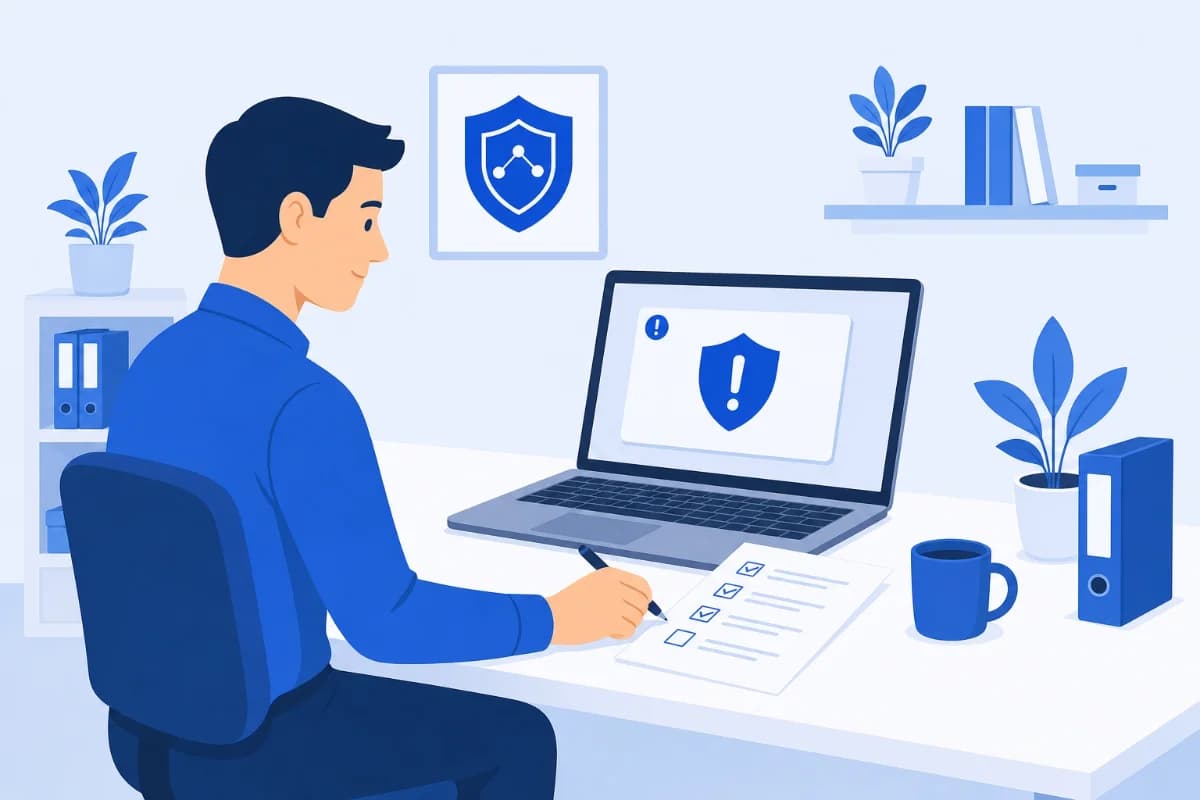
If you clicked a phishing link, stop – don't enter any information. Disconnect from Wi-Fi immediately. In the next 10 minutes, isolate the device; within 30 minutes, change every password you touched; within 60 minutes, scan for malware and notify your IT team or MDR provider. Fast action cuts the damage dramatically.
Every day, employees at small and mid-sized businesses click on phishing links – a fake invoice, a spoofed IT alert, a delivery notification that looks real. According to the FBI Internet Crime Complaint Center (IC3), phishing was the most reported cybercrime in 2023, costing US businesses over $18 million in direct losses. The click itself is not the catastrophe. What you do in the next 60 minutes is.
What actually happens when you click a phishing link?
Clicking a phishing link can trigger one of three attack chains – and only one of them requires you to type anything.
Drive-by malware downloads
Some phishing links exploit browser or plugin vulnerabilities to silently install malware the moment the page loads. No form, no click, no warning. The payload might be a keylogger, a Remote Access Trojan (RAT), or ransomware. According to CISA's phishing guidance, drive-by downloads are increasingly common in targeted business email attacks.
Fake login pages (credential theft)
The link sends you to a page that looks identical to your Microsoft 365 login, your bank, or your company's portal. Enter your credentials here and they go straight to the attacker – often within seconds. The attacker may then reset your real account password, locking you out and accessing everything inside.
Does "just clicking" without entering anything still put you at risk?
Yes. The drive-by scenario above requires no user input at all. Even landing on the page can be enough if your browser is unpatched. The Verizon Data Breach Investigations Report 2024 found that phishing remains the leading initial access vector for breaches at organisations with fewer than 1,000 employees – and a significant share involve no credential entry at all.
Your 10/30/60-minute response checklist
Time is the variable that determines how bad this gets. Here is what to do, in order, from the moment you realise you clicked something you shouldn't have.
Timeframe | Action | Why it matters |
|---|---|---|
0–10 min | Don't enter any information; kill Wi-Fi / go to Airplane Mode; screenshot the URL | Cuts off data exfiltration and malware callback; preserves evidence |
10–30 min | Change passwords for email, banking, and any account you were logged into – on a different device | Stops credential hijacking before the attacker uses the stolen data |
30–60 min | Run a malware scan; back up clean files; notify your IT team or MDR provider; report to IC3/FTC | Detects installed malware; creates recovery baseline; starts formal IR |
First 10 minutes – stop and isolate
- Don't enter any information. If the link took you to a login page or form, close it without typing. Every field you fill in hands data to the attacker.
- Disconnect from Wi-Fi or switch to Airplane Mode. This interrupts any active malware download or data exfiltration in progress. Do this before anything else on the device.
- Do not close the browser tab yet. Screenshot or photograph the URL and page. Your incident response team will need this to trace the attack campaign.
- Stop any downloads in progress. Check your Downloads folder for anything that appeared in the last few minutes and do not open it.
First 30 minutes – contain and change
- Change your passwords – on a different device. Start with email, then banking, then any account you had open when you clicked the link. Use a password manager or generate strong unique passwords. Do not do this on the affected device while it is still potentially compromised.
- Enable or verify MFA on every changed account. Even if an attacker captured your old password, MFA blocks them from using it.
- Notify your IT team or managed security provider. This is not the time to hope for the best. Your MDR provider – or ShieldNet Defense, if you're a customer – can pull endpoint logs and check for active threats in real time.
First 60 minutes – scan, document, and report
- Run a full malware scan. Use your endpoint security tool. If you don't have one, this is the moment to escalate to your managed security provider. For a deeper look at what antivirus misses in endpoint threats, see our incident triage framework for lean teams.
- Back up clean files to an external drive. Only after the malware scan clears. This protects your data if the device needs to be wiped for recovery.
- Report the phishing link. Forward the email or URL to the FBI IC3 (ic3.gov) and the FTC. If it came via email, report it to your email provider's abuse address too.
- Brief your team. If the link was sent to your business email, other colleagues may have received the same campaign. A 30-second heads-up stops the next click.
What if an employee clicked the link – not you personally?
A business phishing click has one extra risk consumer guides don't mention: shared credentials and business email compromise.
When an employee's work email is compromised, the attacker can pivot immediately – sending phishing emails to your clients, accessing shared drives, or impersonating the employee in payment requests. The IBM Cost of a Data Breach Report 2024 found that the average breach cost for organisations with fewer than 500 employees was $3.31 million – most of that from business disruption, not the initial data theft.
If an employee clicked a phishing link:
- Isolate the endpoint immediately. Pull it off the network – physically unplug ethernet or disable Wi-Fi from your management console.
- Revoke active session tokens for the employee's accounts (Microsoft 365, Google Workspace, Slack) from your admin panel. This invalidates any stolen session cookies.
- Notify your MDR provider. They can check for lateral movement across your network within minutes. For a structured approach, see our guide on automated incident response for SMEs.
- Preserve logs before touching anything else. Your NIST incident handling framework requires preserving evidence for the investigation – don't wipe the device until logs are collected.
How does ShieldNet Defense help after a phishing click?
The 60-minute checklist above assumes you're doing this manually. ShieldNet Defense compresses most of it to seconds.
When a ShieldNet Defense customer's endpoint visits a known phishing domain or a drive-by download begins, the platform flags it in real time. Our 24/7 MDR team can isolate the endpoint from the network with a single action – without waiting for someone to notice the browser tab. Within minutes, an analyst is reviewing logs to confirm whether malware executed and what, if anything, was exfiltrated.
For SMEs without a dedicated IT team, this is the difference between a contained 30-minute incident and a multi-day recovery. Our malware incident response checklist covers the full isolate-investigate-recover cycle your MDR provider will follow.
Start a free ShieldNet Defense trial – and have a team watching your endpoints before the next phishing email lands.
FAQ
I clicked a phishing link but didn't enter anything – am I safe?
Not necessarily. Drive-by downloads can install malware the moment a page loads, with no user input at all. Disconnect from the network, run a malware scan, and monitor your accounts for unusual activity. Treat it as a potential infection until the scan clears.
Can clicking a phishing link hack my phone?
Yes, though mobile devices are somewhat harder to compromise than unpatched PCs. Drive-by downloads and credential-harvesting pages work on phones too. If you clicked on a phone: disconnect from Wi-Fi, change your passwords from a separate device, and check your phone's security settings for any newly installed apps you didn't authorise.
How do I know if my device got infected after clicking a phishing link?
Warning signs include unusual slowness, unexpected pop-ups, programmes launching on their own, new browser extensions you didn't install, or strange outbound network traffic in your router logs. Run a full malware scan immediately. If your business has endpoint detection software, check its alert dashboard – or contact your MDR provider.
Should I report a phishing link, and to whom?
Yes. Report to the FBI IC3 (ic3.gov) and the FTC. If it arrived by email, forward the original message (with headers) to [email protected] and your email provider's abuse address. Notify your internal IT team or MDR provider first – before reporting externally – so they can act while the threat is fresh.
Related Articles
Sep 18, 2026
What is Invoice Fraud and How can employees spot it?
Learn how invoice fraud works, how attackers fake supplier payment requests, the warning signs employees should check, and how to verify invoices safely.
Sep 17, 2026
What Is DLP for AI and Why do Businesses need t?
Learn what DLP for AI is, how it prevents employees from sharing sensitive business data with AI tools, and why businesses need AI data protection.
Sep 16, 2026
What is Payroll Phishing and How does it target HR?
Learn how payroll phishing targets HR teams, how fake salary and bank account requests work, the warning signs, and how employees can verify requests safely.

Protect your business with ShieldNet 360
Get started and learn how ShieldNet 360 can support your business.